
The Endgame
As a Unix terminal enjoyer, I want a familiar setup on Windows that integrates nicely with the tools I use every day. Tools like Git and SSH should work seamlessly. I want access to familiar commands like cd and ls, and I want a shell that feels familiar, good-looking and fast.
To my surprise, I never found a pre-built solution or guide online for this. After a lot of experimentation, I landed on my endgame terminal setup for Windows.
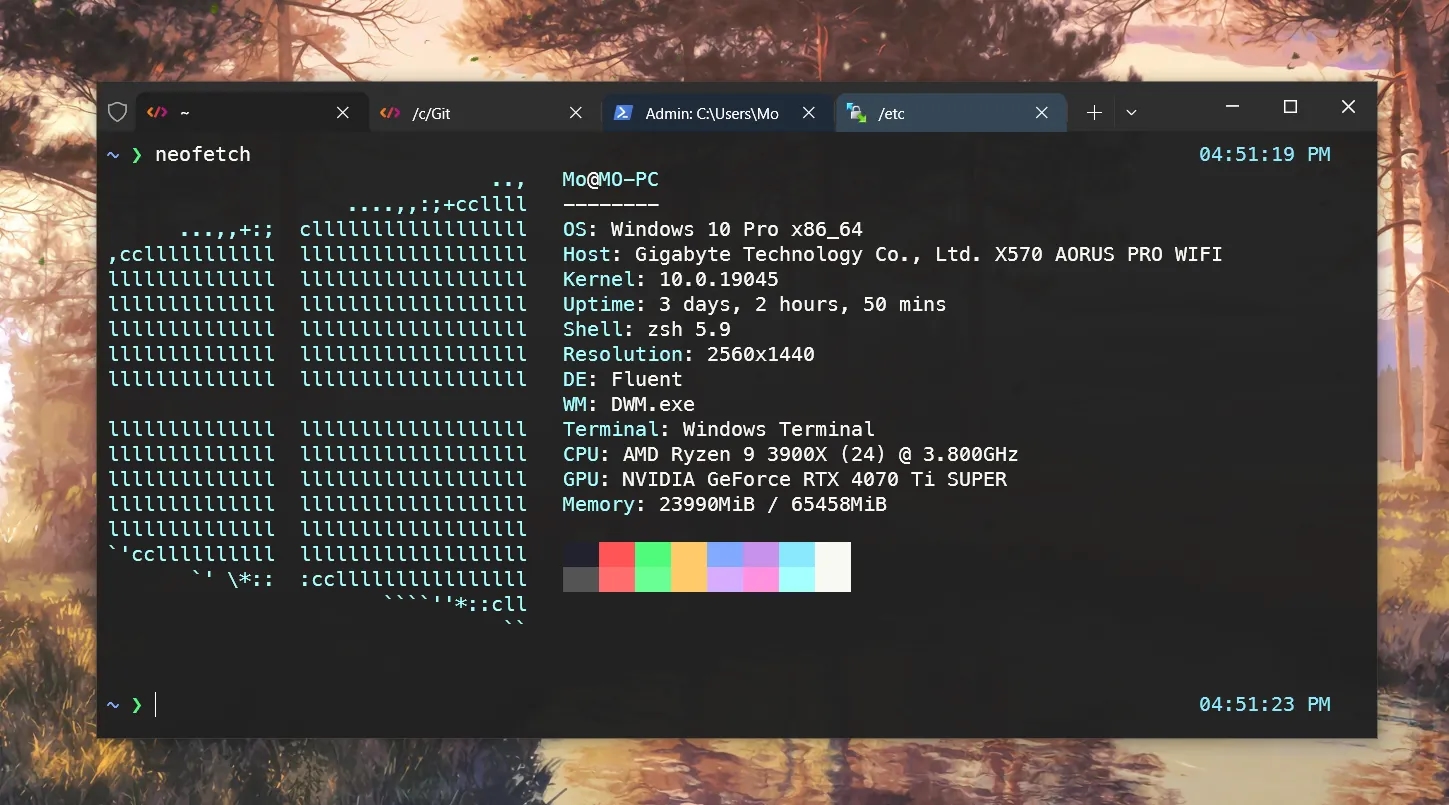
Here is what the final result looks like:
Git for Windows over MSYS2 and WSL
I have been an avid user of Git for Windows for a long time now. It ships with Git Bash, a Bash emulation environment for Windows that makes Git easier to use from the command line.
MSYS2 behaves very similarly to Git Bash, but its git.exe binary is significantly slower. As a result, a separate installation of Git for Windows is usually required anyway.
In my experience, WSL tends to perform worse when working with Windows binaries, pathing and features, especially in more complicated setups. It also requires explicit mapping for the PATH environment variable and other environment variables. Most of these problems are avoided when using Git for Windows.
For that reason, we will be using Git for Windows as our environment of choice.
That said, much of the content of this post is still relevant if you use MSYS2 or WSL.
I strongly recommend Git for Windows unless you have a good reason to use MSYS2 or WSL instead.
Installing Git for Windows
To begin, let's install Git for Windows by following the instructions on the official website.
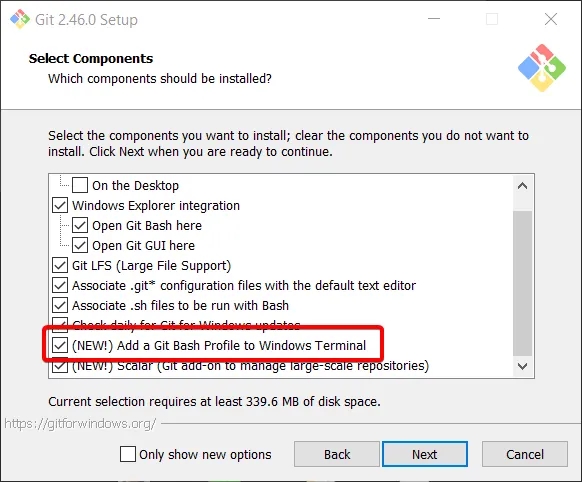
If you have already installed Git for Windows, reinstall to select some important options.
Make sure to automatically Add a Git Bash Profile to Windows Terminal (more on this later):
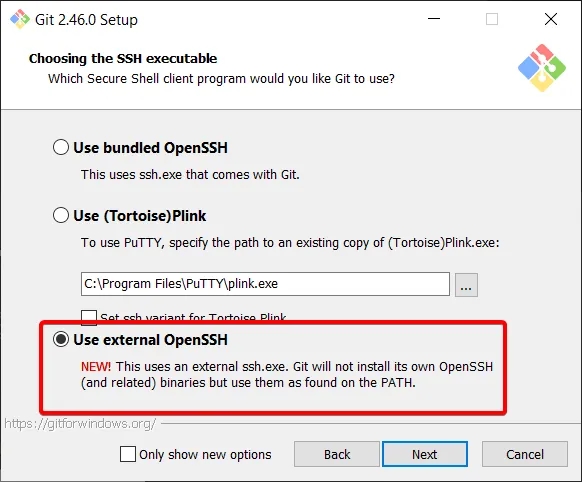
Also, make sure to tell Git Bash to Use external OpenSSH (more on this later):
Installing zsh (optional)
This step is optional but highly recommended.
Skip this step if you want to just use bash instead.
Let's install Zsh, powerlevel10k theme into our Git for Windows environment. This allows zsh to use the surrounding MSYS2-style runtime and resolve tools such as git from the existing Git for Windows installation.
Note: I previously also used Oh My Zsh on Windows, but I no longer recommend it because it can significantly slow down shell start-up.
Installing zsh
- Download the latest zsh binaries from MSYS2 Package Repository
wget https://mirror.msys2.org/msys/x86_64/zsh-5.9-5-x86_64.pkg.tar.zst - Extract the contents of the
.tar.zstfile into your Git for Windows folder (commonlyC:\Program Files\Git) using a tool like 7-Zip - Open
git-bash.exeand validate the installation by running:zsh --version
Installing powerlevel10k
The powerlevel10k theme can make your shell look even prettier! You can follow the instructions on the powerlevel10k Github repository.
- Execute:
git clone --depth=1 https://github.com/romkatv/powerlevel10k.git ~/.powerlevel10k - Update your
~/.zshrcfile to add:source "$HOME/.powerlevel10k/powerlevel10k.zsh-theme" [[ -f ~/.p10k.zsh ]] && source ~/.p10k.zsh - Optional but highly recommended: Install the MesloLGS NF font by following these instructions. Configure Windows Terminal to use this font for your Zsh profile using powerlevel10k.
- Restart your shell and follow the configuration prompts to finish installation.
Installing zsh plugins
I’d recommend installing two useful zsh plugins: zsh-autosuggestions, which suggests commands as you type, and zsh-syntax-highlighting, which highlights commands as you type.
- Execute:
mkdir -p ~/.zsh git clone https://github.com/zsh-users/zsh-autosuggestions ~/.zsh/zsh-autosuggestions git clone https://github.com/zsh-users/zsh-syntax-highlighting ~/.zsh/zsh-syntax-highlighting - Update your
~/.zshrcfile to add:source "$HOME/.zsh/zsh-autosuggestions/zsh-autosuggestions.zsh" source "$HOME/.zsh/zsh-syntax-highlighting/zsh-syntax-highlighting.zsh"
Example .zshrc configuration
Here is what my .zshrc file looks like:
# Perf testing: uncomment this and the zprof line at the end when testing
#zmodload zsh/zprof
# Ensure Git for Windows/MSYS tools take precedence on PATH.
path=(/mingw64/bin /usr/local/bin /usr/bin /bin $path)
# Performance
DISABLE_MAGIC_FUNCTIONS=true
ZSH_DISABLE_COMPFIX=true
# Powerlevel10k instant prompt.
# Keep this near the top. Anything that may prompt for input should go above it.
if [[ -r "${XDG_CACHE_HOME:-$HOME/.cache}/p10k-instant-prompt-${(%):-%n}.zsh" ]]; then
source "${XDG_CACHE_HOME:-$HOME/.cache}/p10k-instant-prompt-${(%):-%n}.zsh"
fi
# Speed up zsh compinit by only checking cache once a day.
# https://gist.github.com/ctechols/ca1035271ad134841284
#autoload -Uz compinit
#if [[ -n ${ZDOTDIR}/.zcompdump(#qN.mh+24) ]]; then
# compinit;
#else
# compinit -C;
#fi;
# Aliases
alias ls='ls --color=auto'
alias ll='ls -lah'
alias la='ls -A'
alias l='ls -CF'
# History and keybindings
HISTFILE=~/.histfile
HISTSIZE=1000
SAVEHIST=1000
bindkey -v
bindkey '^I' complete-word
bindkey '^F' autosuggest-accept
# Prompt
source "$HOME/.powerlevel10k/powerlevel10k.zsh-theme"
[[ -f ~/.p10k.zsh ]] && source ~/.p10k.zsh
# ZSH plugins
source "$HOME/.zsh/zsh-autosuggestions/zsh-autosuggestions.zsh"
source "$HOME/.zsh/zsh-syntax-highlighting/zsh-syntax-highlighting.zsh"
# Perf testing: uncomment this and zmodload at the top when testing
#zprof
It includes some useful performance testing commands that you can uncomment to benchmark zsh start-up time. There is also a compinit section you can uncomment to enable advanced auto-completion. I have this disabled personally because it noticeably slows shell start-up time, and I do not use the feature much. The path patch is included in case you run into errors such as gitstatus failed to initialize.
Integrating with Windows Terminal
You should have a Git Bash profile already created for you from the Git for Windows installer. We want Windows Terminal to spawn either bash or zsh directly for maximum performance.
bash
If you are sticking with bash, you can leave the command line executable in Windows Terminal as is:
C:\Progra~1\Git\bin\bash.exe -izsh
If you are using zsh, change the command line executable in Windows Terminal to:
C:\Progra~1\Git\usr\bin\zsh.exe -iFrom this point on, when I say shell, I mean whichever one you are using in Git for Windows: bash or zsh.
Compatibility
Some binaries and terminal integrations may not work well with bash or zsh in Git for Windows. One example is VS Code's terminal integration.
This can potentially be fixed by setting the following environment variable while spawning a shell:
"environment":
{
  "TERM": "cygwin"
}
A beautiful terminal
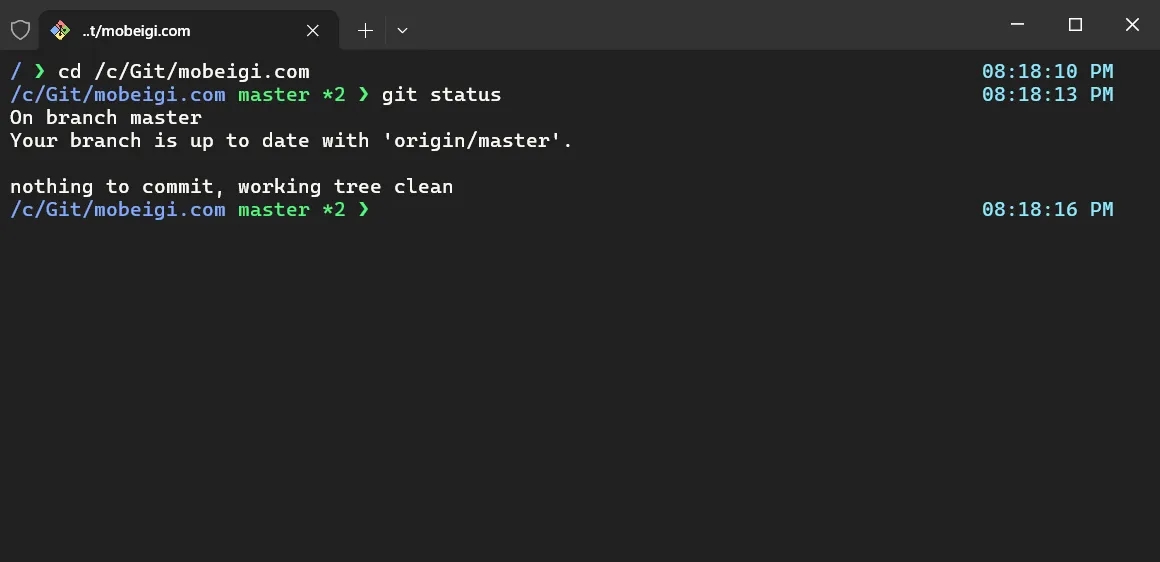
Your terminal should now look beautiful!
Pro-tip: Check out the Windows Terminal Themes website for some great looking themes.
Integrating with OpenSSH
We want to make sure we always use Windows OpenSSH as our main SSH agent. This simplifies our setup going forward.
To do this, we utilise a newer feature of Git for Windows during the installation. Traditionally, Git for Windows would provide its own ssh.exe binaries for us to use. However, we'd much rather it detect and use the OpenSSH binary declared on the path.
Ensure you enabled the Use external OpenSSH option during the installation of Git for Windows.
Note: You must also have an entry in your PATH environment variable pointing to:
c:\windows\system32\openssh\Integrating Pageant with OpenSSH
I enjoy using Pageant (from the PuTTY family) to load up my SSH keys when I need them. It's fast, secure and convenient.
By integrating Pageant with OpenSSH, all our Windows binaries can use the OpenSSH ssh.exe and receive credentials via Pageant seamlessly.
The official documentation is available here.
To set this up, simply run Pageant like so (replacing the path to your SSH folder):
"C:\Program Files\PuTTY\pageant.exe" --openssh-config C:\Users\Mo\.ssh\pageant.confAnd add to the bottom of your C:\Users\Mo\.ssh\config file:
Include pageant.confThis will now automatically link up Pageant and Windows OpenSSH via named pipes. OpenSSH is now able to access your pageant SSH keys automatically!
I'd also recommend running Pageant like this on system startup by making a shortcut in this folder:
C:\Users\Mo\AppData\Roaming\Microsoft\Windows\Start Menu\Programs\StartupFinally, we want to set our GIT_SSH environment variable to point to OpenSSH to tell Git which SSH agent we want to use. We set GIT_SSH to:
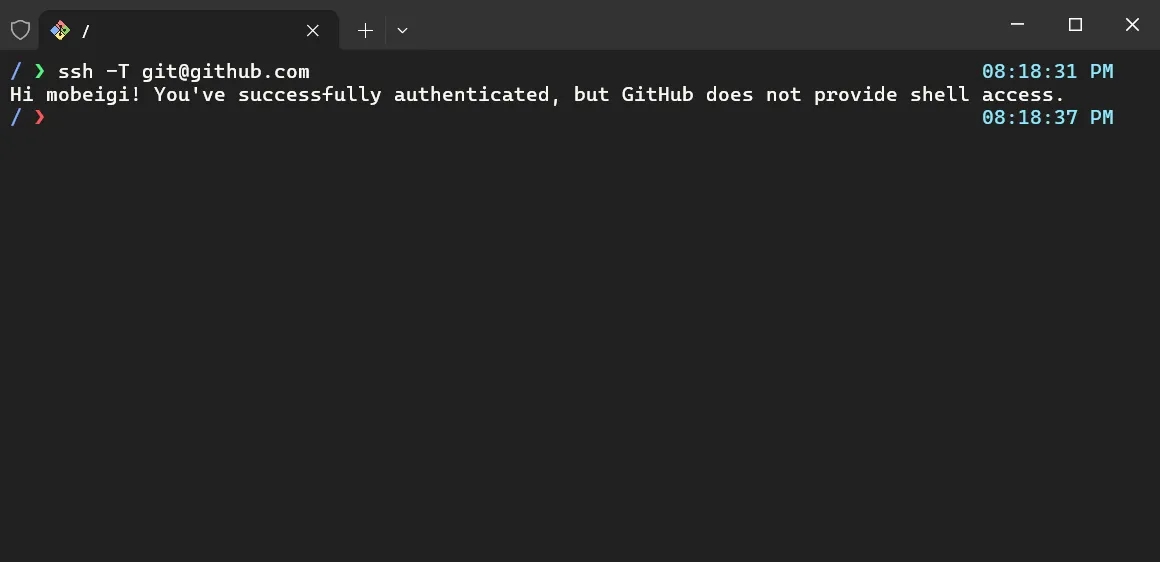
c:\Windows\System32\OpenSSH\ssh.exeAt this point, load up some SSH keys into Pageant and start a Git Bash terminal. You should be able to authenticate with a SSH endpoint. For example, this is me authenticating with Github:
Integrating with WinSCP
WinSCP is a fantastic file manager for Windows. I have been using it forever to manage my server. It lets me manipulate files easily through a GUI while also spawning shell sessions for CLI access as needed. Let's configure WinSCP to spawn Windows Terminal instances that use our shell.
Pro-tip: I'd recommend duplicating your existing Windows Terminal profile for a special one just for WinSCP. I called mine ZSH (WinSCP) and changed the icon to the WinSCP icon by setting the icon to the WinSCP executable at C:\Program Files (x86)\WinSCP\WinSCP.exe. I also changed the theme so I can quickly recognise my WinSCP terminal windows compared to my local ones.
WinSCP has a page on integration with various terminals here.
In our case, we'd go to Preferences -> Integration -> Applications and set the PuTTY/Terminal client path to:
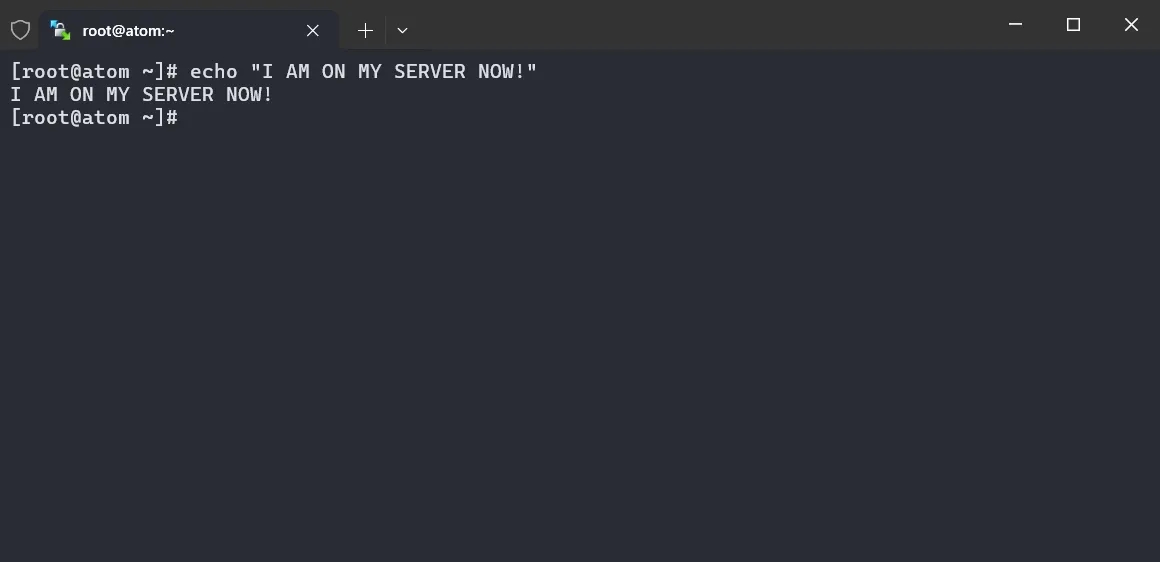
wt.exe --profile "ZSH (WinSCP)" -- "ssh !U@!@ -p !#"This will spawn a new Windows Terminal window using our target profile, then connect immediately over SSH. If your keys are loaded into Pageant (which they should be for seamless authentication with WinSCP), then this will automatically authenticate you! If you are using password-based authentication for a server or your keys aren't loaded into Pageant, you will be prompted to enter a password.
If you prefer, you can also make Windows Terminal open in a new tab within an existing window by using:
wt.exe --window 0 new-tab --profile "ZSH (WinSCP)" -- "ssh !U@!@ -p !#"Check it out in action:
Finito
With your shell integrated with Windows Terminal, OpenSSH, Pageant and WinSCP, you now have an efficient and attractive development environment on Windows.
Remember to occasionally update Git for Windows, the MSYS2 zsh binaries, and powerlevel10k so you can benefit from the latest improvements.